Follow the instructions below to install the new Windows App for connecting to the Remote Desktop.
Click the link to take you to the Windows App page:
https://apps.microsoft.com/detail/9N1F85V9T8BN?hl=en-us&gl=US&ocid=pdpshare
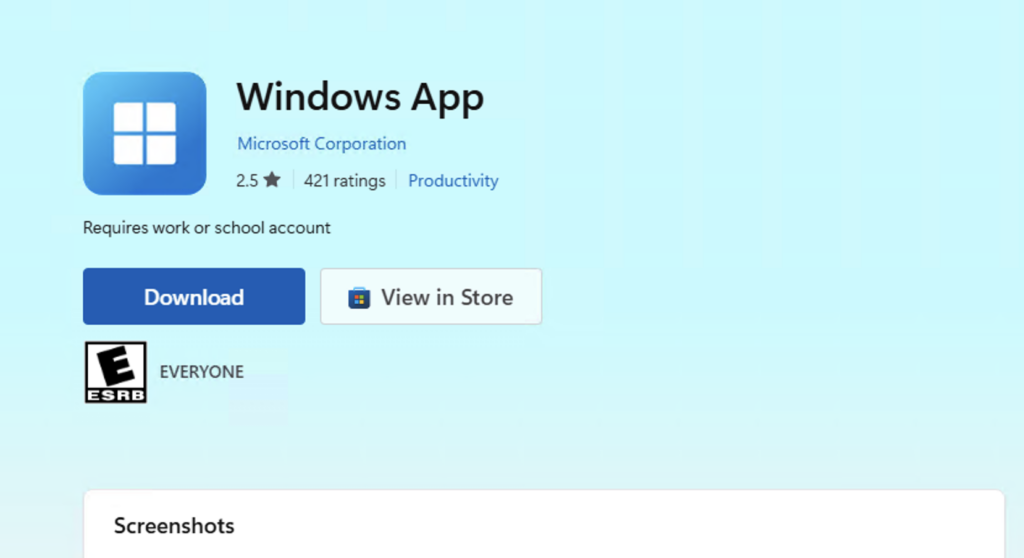
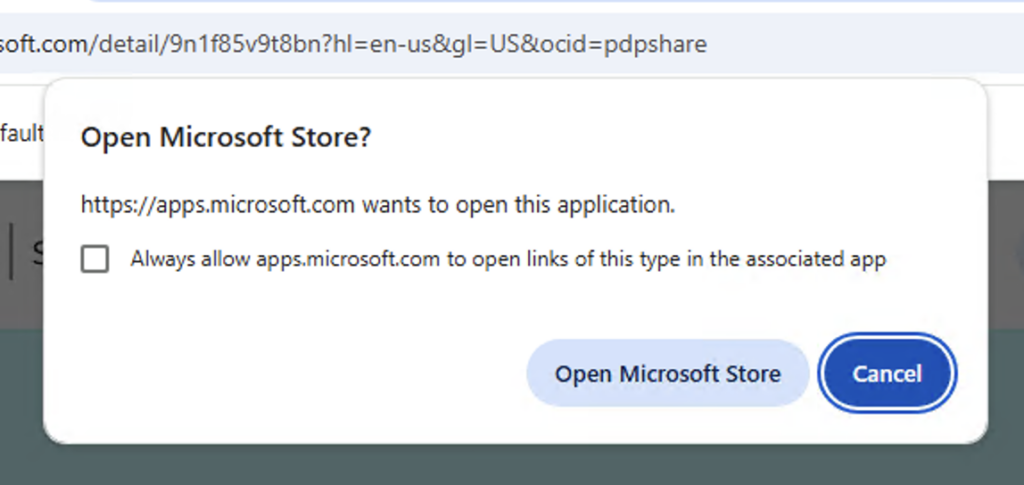
From this page choose to “View in Store”. If a confirmation windows appears, select “Open Microsoft Store”
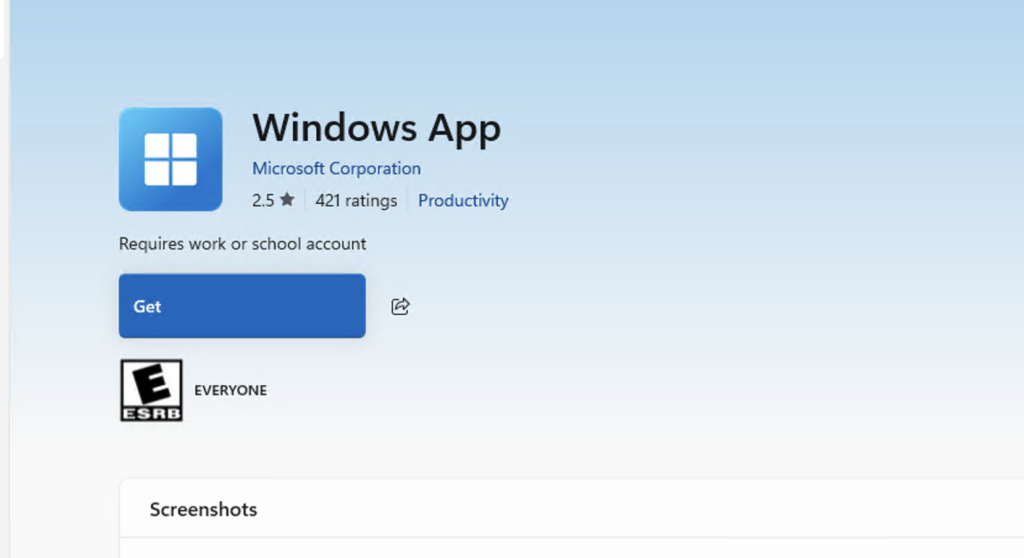
When the Microsoft Store opens it should show the Windows App. Click on the “Get” button.
After it has finished installing, you can close the Microsoft Store and the Browser window.
In the Search bar at the bottom of the screen, start typing “Windows App”. It should display results like this:
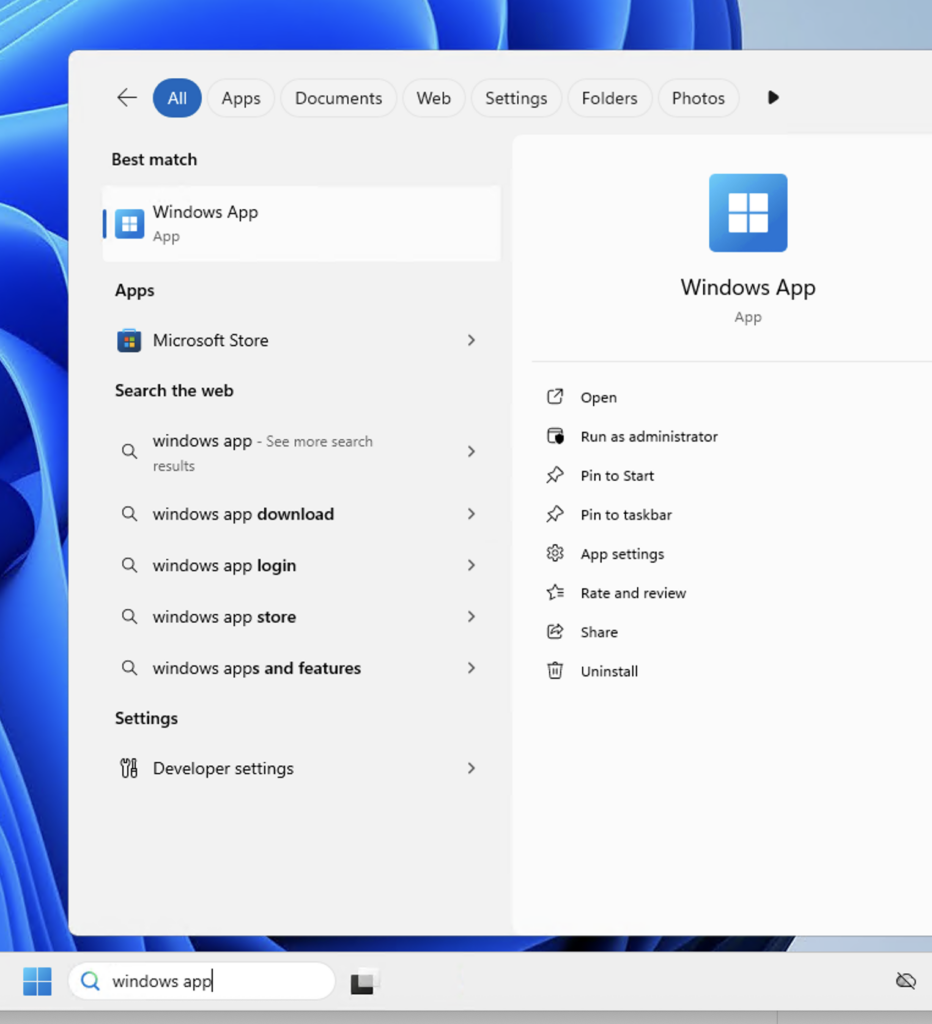
On the right hand side, click on “Pin to taskbar” to add an icon to the taskbar at the bottom of your screen for easy access.
When you click on the Windows App to launch it for the first time, it should show you this initial screen with a “Sign In” button. Just click that and sign in using your normal email and password that you use for the remote. This will then show you the connection icon that you will use.